
AI Fashion Photography Prompts for Ghost Mannequin and Virtual Try-On for Male and Female Models
Introduction
Hiring models, booking studio time, and paying a photographer used to be the only way to get professional fashion product images. Not anymore. AI has completely flipped the script — and if you’re running an online clothing store or managing product photography for a fashion brand, this changes everything for you.
With the right AI fashion photography prompts, you can generate ghost mannequin product shots, dress virtual models in your actual garments, and produce studio-quality images without leaving your desk. No lighting rigs. No retouching bills. Just clean, accurate, professional results — fast.
In this post, you’ll get 8 ready-to-use prompts covering ghost mannequin shots for full outfits and individual garments, plus virtual try-on for both male and female models. Each one is built to work with Google Flow and gives you precise, photorealistic output. Whether you’re launching a new collection or just need clean product pages, these prompts will save you serious time and money.
Pro Tip: Before using these try-on prompts, you might want to create your own unique AI fashion models. Check out our guide on [MASTER PROMPT FOR FASHION MODEL IMAGE GENERATION] to get started.
The Top List
1. Ghost Mannequin Product Photo of Womens Garment on White Background
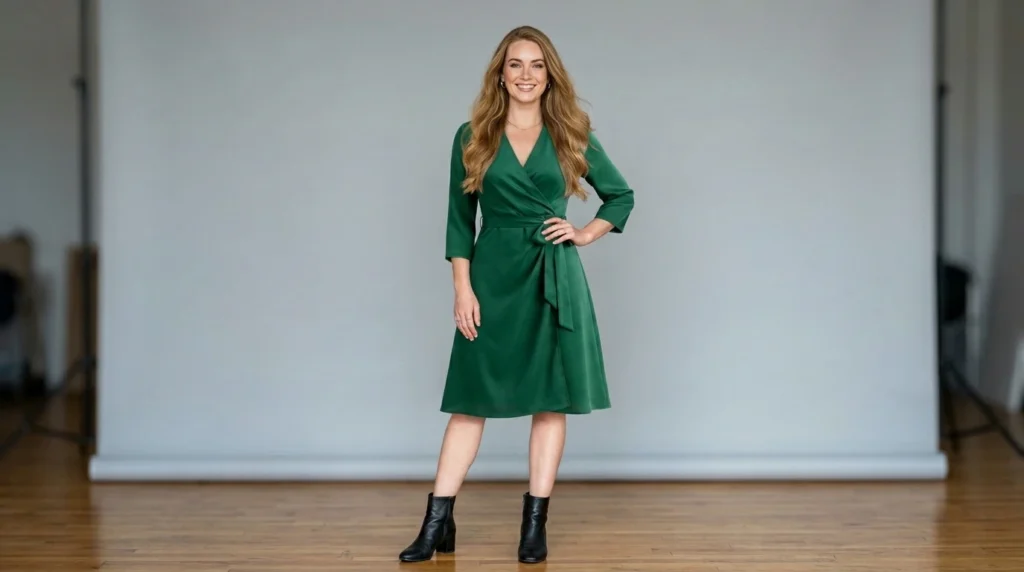
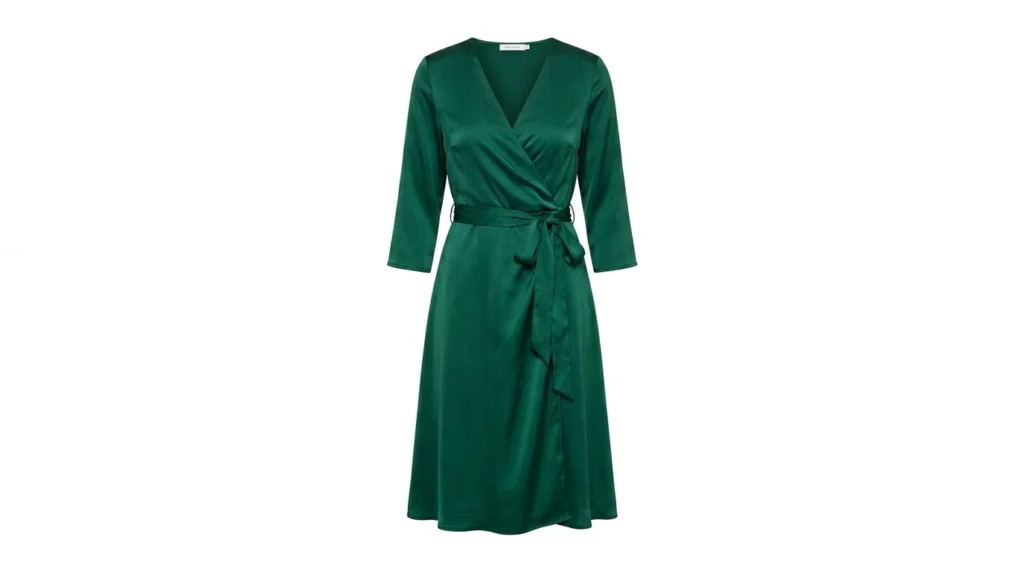
The ghost mannequin style is the gold standard for e-commerce clothing photography — and this prompt nails it. It strips the model completely and presents the women’s garment floating in perfect form against a white background, exactly like a high-end product listing. Fabric texture, structure, and design details all come through sharp and clean.
A professional, high-resolution product photograph of the exact garment shown in the reference image. The female model has been completely removed. The garment is presented in a 'ghost mannequin' or 'flat lay' style, as if floating, against a seamless, pure white studio background. The specific pattern, color, texture, and details of the dress must be replicated precisely from the reference image. The dress is perfectly shaped and formed, displaying its full design (front, sleeves, neckline, and hem). Professional, soft, diffuse studio lighting highlights the natural fabric texture. No visible shadows, props, or other elements. The focus is sharp on the entire garment.
How to Use This Prompt
Step 1: Open Google Flow and upload a photo of the female model wearing the dress clearly as your reference image.
Step 2: Paste the prompt and generate the ghost mannequin output.
Step 3: Review for any residual shadow or background artifacts. If present, regenerate or use a cleaner reference image with better lighting.
Step 4: Download the output and use directly in your product listings.
How to Customize This Prompt
Tip 1 — Specify the view angle: Add “back view” or “side view” to the prompt to generate multiple angles of the same garment for a more complete product gallery.
Tip 2 — Request specific fabric detail: Add a line like “highlight the lace trim” or “emphasize the satin sheen” to direct the AI’s attention to a signature material feature of your garment.
Tip 3 — Try a light gray background: Swap “pure white” for “light neutral gray” in the prompt if your brand uses a warmer, softer product photography aesthetic.
2. Ghost Mannequin Product Photo of Mens Garment on White Background
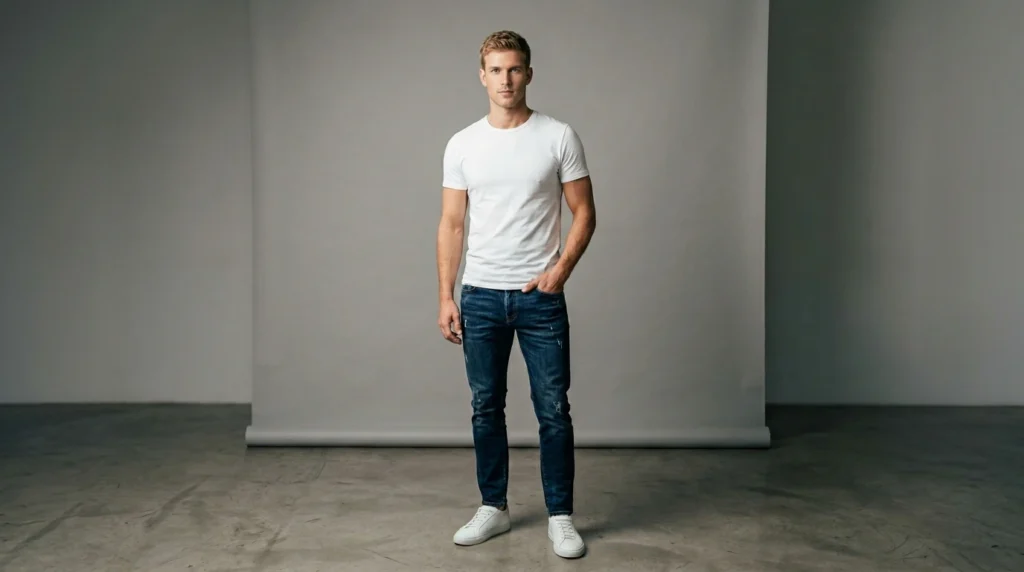
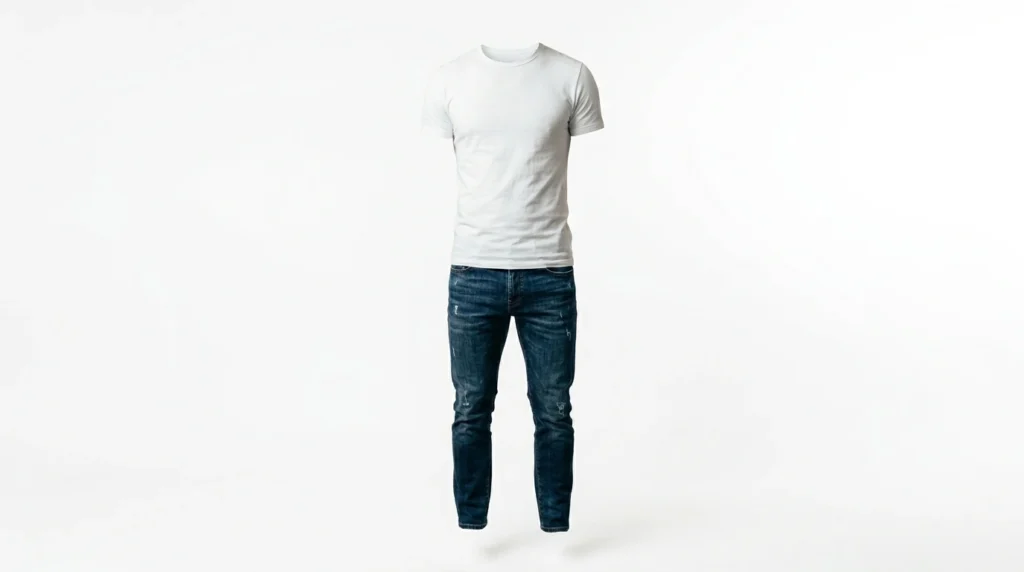
Clean, minimal, and completely professional — this prompt produces the kind of product images you see on leading menswear websites. It removes the male model entirely and presents the garment in a three-dimensional floating form, giving customers a clear, unobstructed look at every design element.
A professional, high-resolution product photograph of the exact garment shown in the reference image. The male model has been completely removed. The garment is presented in a 'ghost mannequin' or 'flat lay' style, as if floating, against a seamless, pure white studio background. The specific pattern, color, texture, and details of the garment must be replicated precisely from the reference image. The garment is perfectly shaped and formed, displaying its full design (front, sleeves, neckline, and hem). Strictly exclude any footwear, shoes, sandals, or socks from the final image. Professional, soft, diffuse studio lighting highlights the natural fabric texture. No visible shadows, props, or other elements. The focus is sharp on the entire garment.
How to Use This Prompt
Step 1: Open Google Flow and upload a clear photo of the male model wearing the garment as your reference image.
Step 2: Paste and run the prompt. The AI will extract the garment and present it in a clean 3D floating style.
Step 3: Save the final image to your device (Download) and add it directly to your online store’s product page.
How to Customize This Prompt
Tip 1 — Add garment-specific detail requests: If you’re shooting a structured blazer, add “maintain sharp lapels and structured shoulders” to prevent the AI from softening defined silhouettes.
Tip 2 — Generate front and back pairs: Run the prompt twice — once with a front-facing model image and again with a back-facing one — to get a full front-back product gallery.
Tip 3 — Batch similar garments: Use this workflow for every item in a collection and keep a consistent white background tone across all images for a unified catalog look.
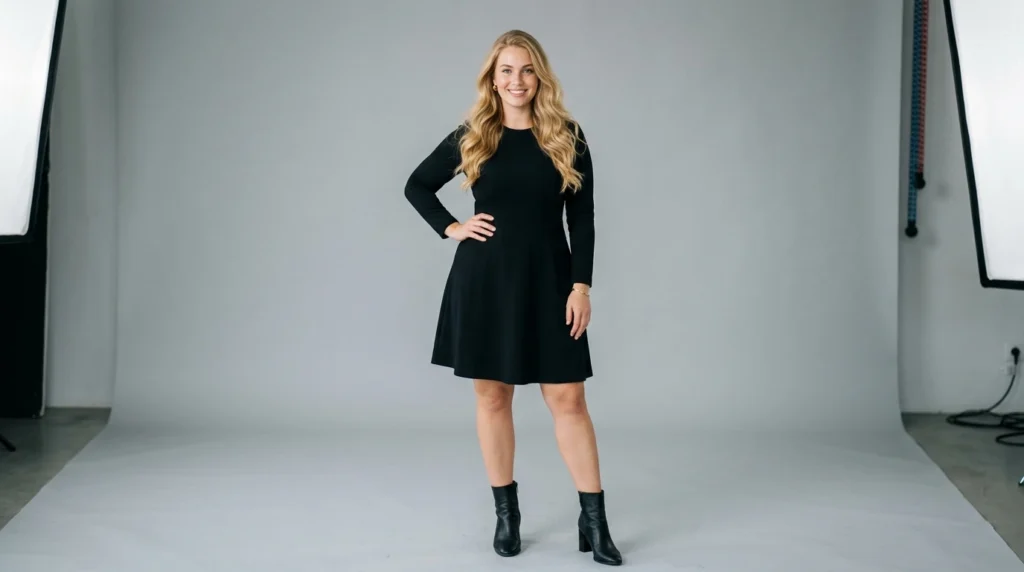
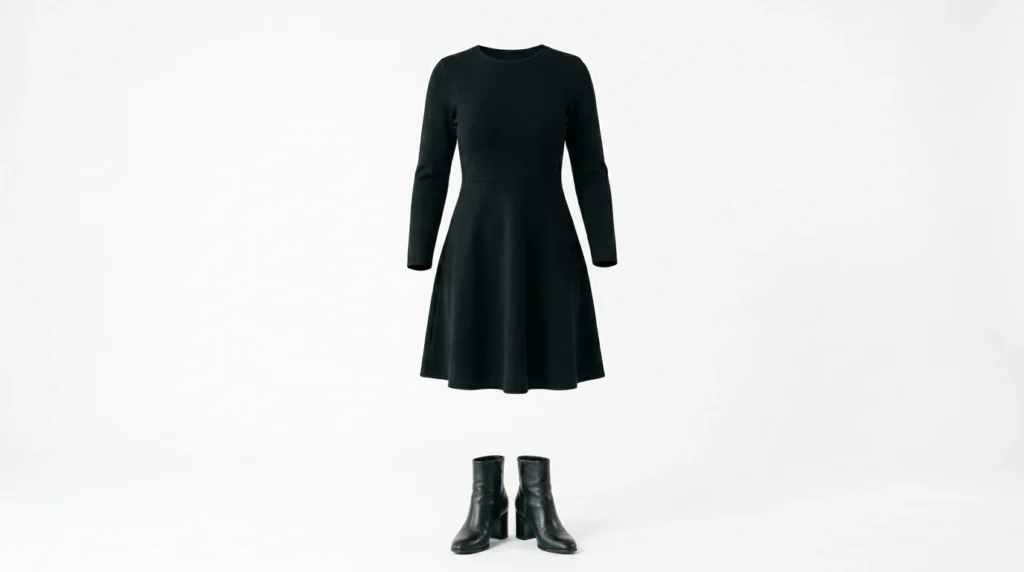
3. Ghost Mannequin Product Photo of Womens Dress and Sandals on White Background
Selling a complete look? This prompt captures both the dress and the sandals in one polished ghost mannequin image — with the shoes positioned naturally beneath the floating hem. It reads like a high-end editorial product shot and helps customers instantly visualize the full outfit.
A professional, high-resolution product photograph of the exact garment and the footwear shown in the reference image. The female model has been completely removed. The garment and sandals are presented in a 'ghost mannequin' or 'flat lay' style, as if floating in their respective positions, against a seamless, pure white studio background. The specific pattern, exact colors, original silhouette (shape), unique textures, and intricate details of both the dress and the footwear must be replicated with precise fidelity from the reference image. The dress is perfectly shaped and formed, displaying its full design, with the matching sandals positioned naturally below the hem. Professional, clean, diffuse studio lighting highlights the natural fabric and material textures without altering colors or distorting the garment's shape. No visible shadows, props, or other elements. The focus is sharp on the entire outfit.
How to Use This Prompt
Step 1: Open Google Flow and upload a clear photo of a female model wearing both the dress and sandals. Ensure the full outfit—from head to toe—is visible in the frame so the AI can capture both items accurately.
Step 2: Once the image is assigned as a reference, paste this prompt and hit run. The AI will extract both the dress and sandals, positioning them in a natural, 3D floating style.
Step 3: Check the final image to ensure both items appear correctly and maintain their relative positions. For the best result, use a high-resolution reference photo.
Step 4: Generate and check that both the dress and sandals appear in the final output, floating naturally in position.
Step 5: Download your image and use it for bundle listings, lookbook pages, or social media shop posts to drive conversions.
How to Customize This Prompt
Tip 1 — Swap sandals for other footwear: Change “sandals” in the prompt to “block-heeled mules,” “platform sandals,” or “ballet flats” depending on the footwear type you are shooting.
Tip 2 — Add a jewelry or accessory element: If your brand sells coordinated sets with a belt or earrings, add a mention of the accessory to the prompt and include it in your reference image.
Tip 3 — Try a slight shadow for depth: Modify the prompt to include “a very subtle soft drop shadow beneath the items” if you want a slightly grounded, editorial feel rather than a fully flat look.
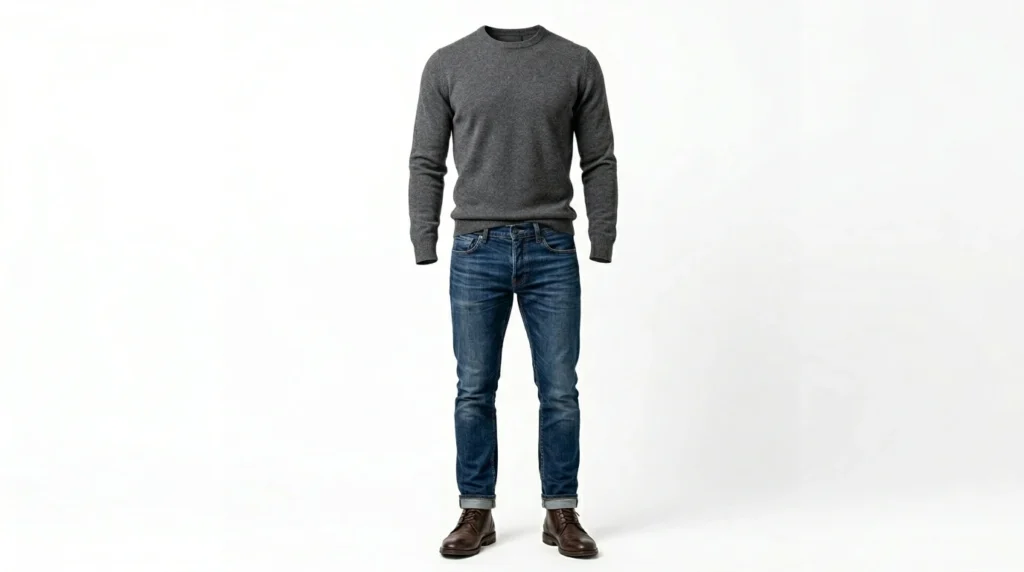
4. Ghost Mannequin Product Photo of Mens Outfit and Footwear on White Background
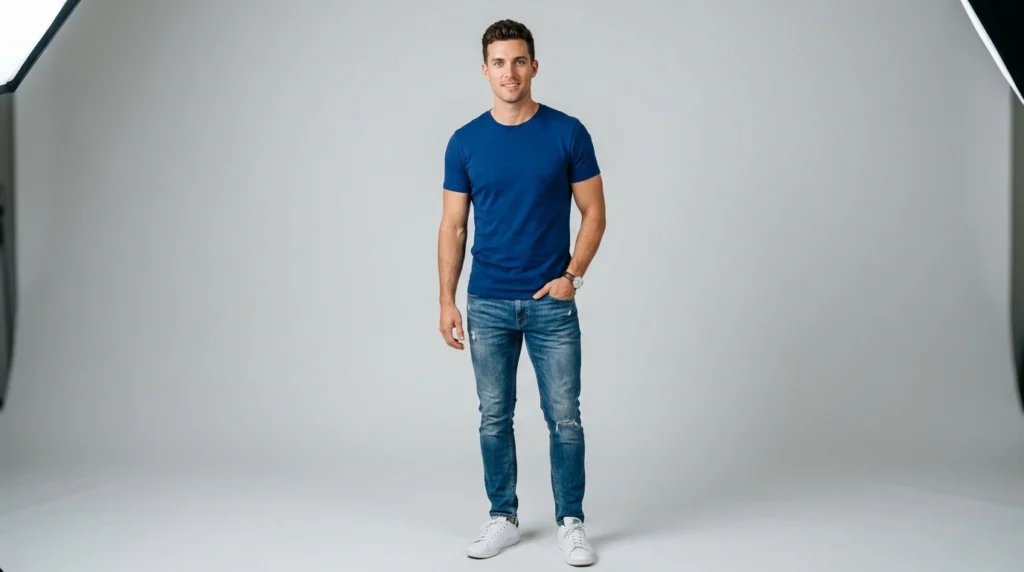
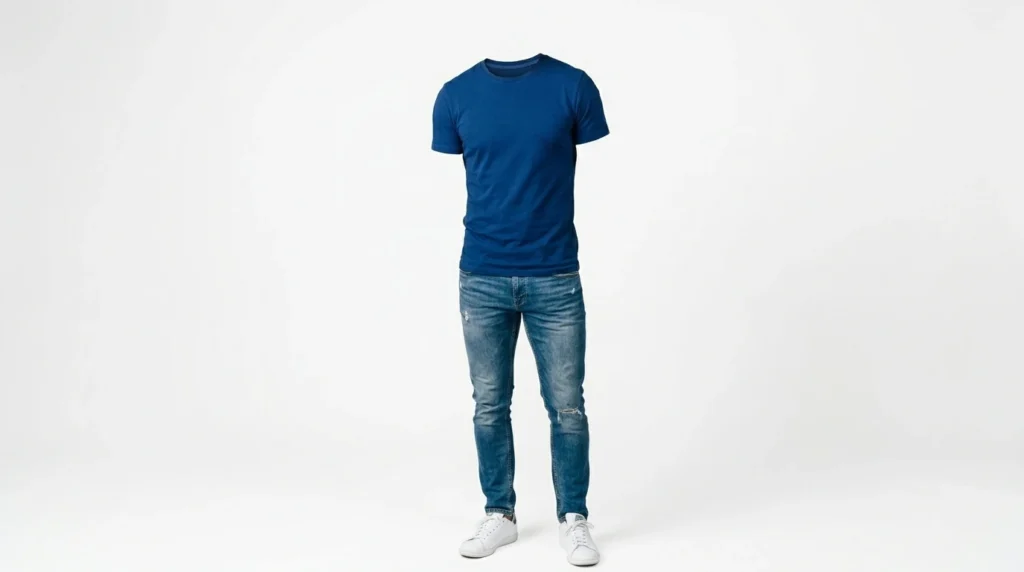
The complete men’s package — outfit and shoes, no model, pure product. This prompt delivers a polished ghost mannequin image that shows a men’s full look from collar to sole, floating cleanly against white. Perfect for brands running styled capsule collections or bundle product listings.
A professional, high-resolution product photograph of the exact garment and the footwear shown in the reference image. The male model has been completely removed. The garment and footwear are presented in a 'ghost mannequin' or 'flat lay' style, as if floating in their respective positions, against a seamless, pure white studio background. The specific pattern, exact colors, unique textures, and intricate details of both the garment and the footwear must be replicated with precise fidelity from the reference image. The garment is perfectly shaped and formed, displaying its full design, with the matching footwear positioned naturally below the hem. Professional, clean, diffuse studio lighting highlights the natural fabric and material textures without altering colors. No visible shadows, props, or other elements. The focus is sharp on the entire outfit.
How to Use This Prompt
Step 1: Open Google Flow and upload a full-body image of the male model wearing both the outfit and the footwear.
Step 2: Once your image is uploaded as a reference, paste this prompt and click run. The AI will extract the items and create a professional floating outfit with the shoes positioned naturally below.
Step 3: Verify that both the clothing and footwear appear seamless and well-positioned. For the best results, use a high-resolution image with good lighting.
Step 4: Save the final result to your device (Download) and use it directly for your product listings, lookbooks, or wholesale catalogs.
How to Customize This Prompt
Tip 1 — Feature specific shoe styles: Update the prompt to name the exact footwear style — “leather derby shoes,” “chunky sneakers,” or “suede loafers” — to guide the AI toward the right aesthetic.
Tip 2 — Create seasonal catalog sets: Run this prompt across an entire collection to build a consistent ghost mannequin catalog for all your men’s styles — great for wholesale buyers who need clean product images quickly.
Tip 3 — Try a folded or stacked layout: For a flat lay variation, add “presented in a styled flat lay arrangement” to the prompt to get a top-down editorial image instead of the floating 3D silhouette.
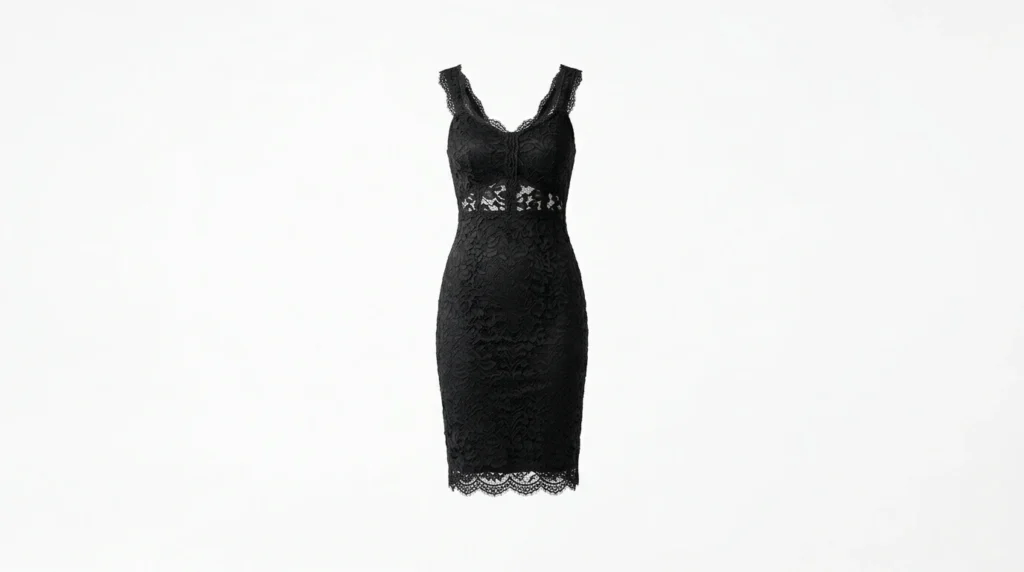
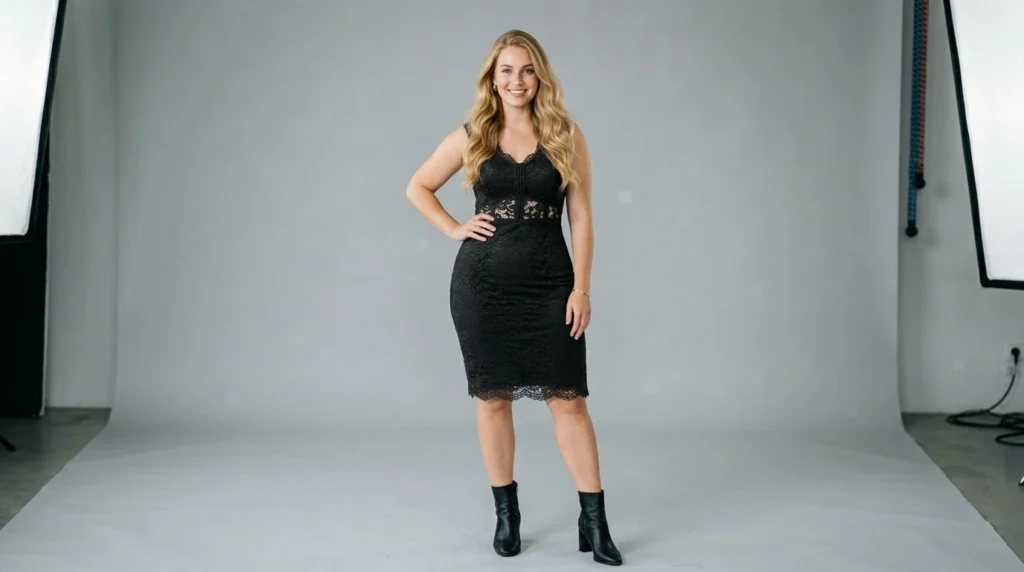
5. AI Virtual Try-On for Female Model with Garment Only
This prompt is a game-changer for women’s fashion brands that want to showcase a specific dress or top on a model — without an actual photoshoot. It maps every pattern, fold, and texture from your garment image onto a model photo with stunning accuracy. The result looks like a real studio shot, not a digital cut-and-paste job.
A high-resolution, photorealistic composite image based precisely on the provided reference images. The female model from Reference Image 2 is now wearing the exact garment shown in Reference Image 1. The specific patterns, unique textures, intricate details, and original colors of the garment from Reference Image 1 are mapped accurately onto the model's body, replacing her previous attire. The garment drapes naturally, respecting the model's original pose, posture, body contours, and the studio lighting environment from Reference Image 2. All details of the model's face, hair, arms, and the studio background remain identical to Reference Image 2. Focus on precise content transfer with realistic blending and folds.
How to Use This Prompt
Step 1: Open Google Flow and start a new project.
Step 2: Upload your female garment photo as Reference Image 1. Make sure it is well-lit, sharp, and shows the full item clearly.
Step 3: Upload your female model photo as Reference Image 2. Use a clean studio shot with a simple background for best results.
Step 4: Paste the prompt into the text input field and generate.
Step 5: Review the output. If needed, regenerate with slightly adjusted reference images for better garment clarity.
How to Customize This Prompt
Tip 1 — Change the model’s pose: Swap out Reference Image 2 for a model in a different pose — seated, walking, or side-facing — to create variety in your product listing without rewriting the prompt.
Tip 2 — Test different garment types: This prompt works beyond dresses. Try it with blouses, jackets, or co-ord sets to see how it handles different fabric drapes and structures.
Tip 3 — Adjust the background: If you want a lifestyle feel rather than a studio look, choose a Reference Image 2 where the model is standing in a natural or interior setting.
6. AI Virtual Try-On for Female Model with Garment and Sandals
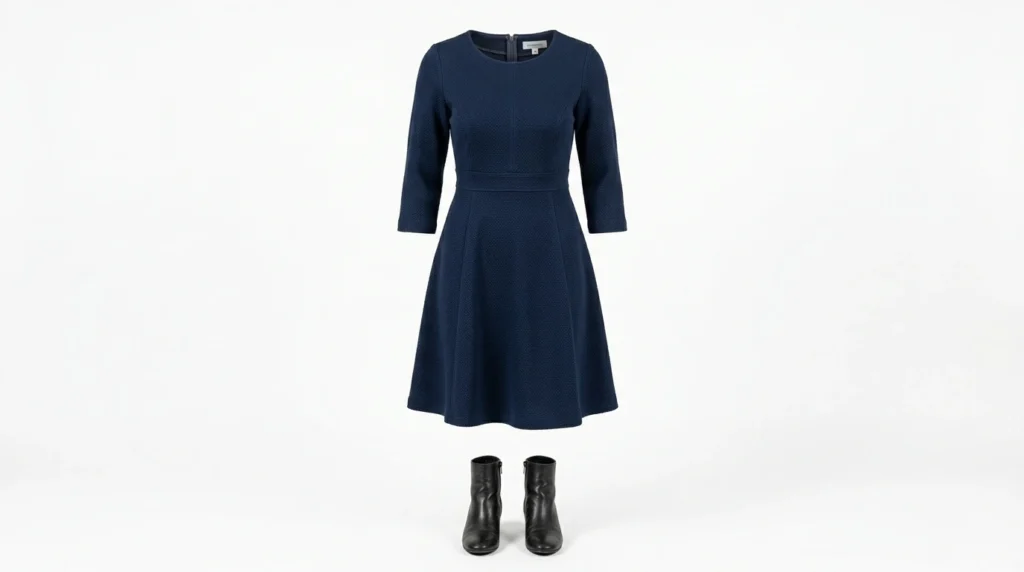
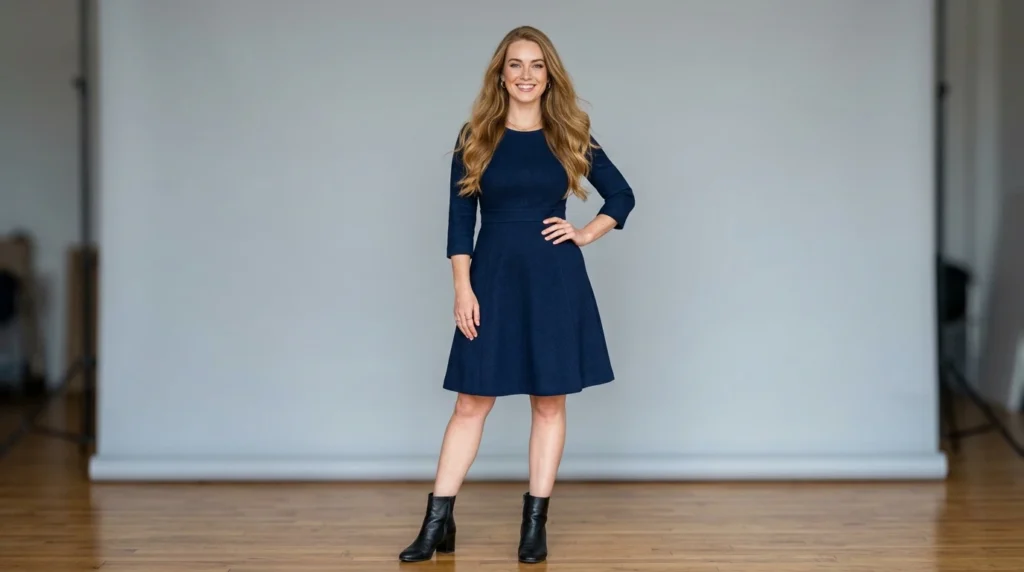
When your product listing includes both an outfit and footwear, showing them together on a model makes a massive difference in conversion. This prompt handles both items at once — transferring the dress and the sandals from your reference image onto the model accurately. It respects the fit, material, and proportions of both.
A high-resolution, photorealistic composite image based precisely on the provided reference images. The female model from Reference Image 2 is now wearing the exact garment and the exact sandals shown in Reference Image 1. The specific patterns, unique textures, intricate details, and original colors of both the garment and the sandals from Reference Image 1 are mapped accurately onto the model's body and feet, replacing her previous attire and footwear. The garment and sandals drape and fit naturally, respecting the model's original pose, posture, body contours, and the studio lighting environment from Reference Image 2. All details of the model's face, hair, arms, and the studio background remain identical to Reference Image 2. Focus on precise content transfer of both items with realistic blending, folds, and positioning.
How to Use This Prompt
Step 1: Open Google Flow and start a new project.
Step 2: Upload a single image that clearly shows both the female outfit and the sandals as Reference Image 1. A flat lay or model-worn shot works well here.
Step 3: Upload your female model photo as Reference Image 2.
Step 4: Paste the prompt and generate. Check that both the sandals and garment have transferred correctly before using.
How to Customize This Prompt
Tip 1 — Try different footwear types: Replace sandals with heels, sneakers, or ankle boots. Just update the word “sandals” in the prompt to match the footwear you are working with.
Tip 2 — Coordinate seasonal looks: Pair summer dresses with strappy sandals or use this prompt for winter knit sets paired with boots for seasonal campaign content.
Tip 3 — Use for accessory bundles: If your brand sells matching bag and shoe sets, reference both in your image and adjust the prompt slightly to include the accessory in the transfer.
7. AI Virtual Try-On for Male Model with Garment Only
Men’s fashion product photography has the same challenge — you need a model, but shoots are expensive. This prompt solves that by dressing a male model in your exact garment, preserving every stitch, logo, and fabric texture from the original product image. The output looks natural, styled, and shoot-ready.
A high-resolution, photorealistic composite image based precisely on the provided reference images. The male model from Reference Image 2 is now wearing the exact garment shown in Reference Image 1. The specific patterns, unique textures, intricate details, and original colors of the garment from Reference Image 1 are mapped accurately onto the model's body, replacing his previous attire. The garment drapes naturally, respecting the model's original pose, posture, body contours, and the studio lighting environment from Reference Image 2. All details of the model's face, hair, arms, and the studio background remain identical to Reference Image 2. Focus on precise content transfer with realistic blending and folds.
How to Use This Prompt
Step 1: Open Google Flow and start a new project.
Step 2: Upload the male garment image — a shirt, jacket, or trousers — as Reference Image 1.
Step 3: Upload a clear male model photo as Reference Image 2. A neutral pose with visible clothing area gives the best transfer results.
Step 4: Submit the prompt and review your output for accuracy in pattern and fit.
How to Customize This Prompt
Tip 1 — Switch model body types: Use reference model images of different builds — slim, athletic, or broader frames — to show how a garment fits across your customer base.
Tip 2 — Test formal vs casual looks: Try this prompt with dress shirts and trousers for formal wear listings, then switch to graphic tees or hoodies for casual ranges.
Tip 3 — Use lifestyle backgrounds: Pick a Reference Image 2 where the model stands in an urban or outdoor setting to give your product a lifestyle feel rather than a plain studio vibe.
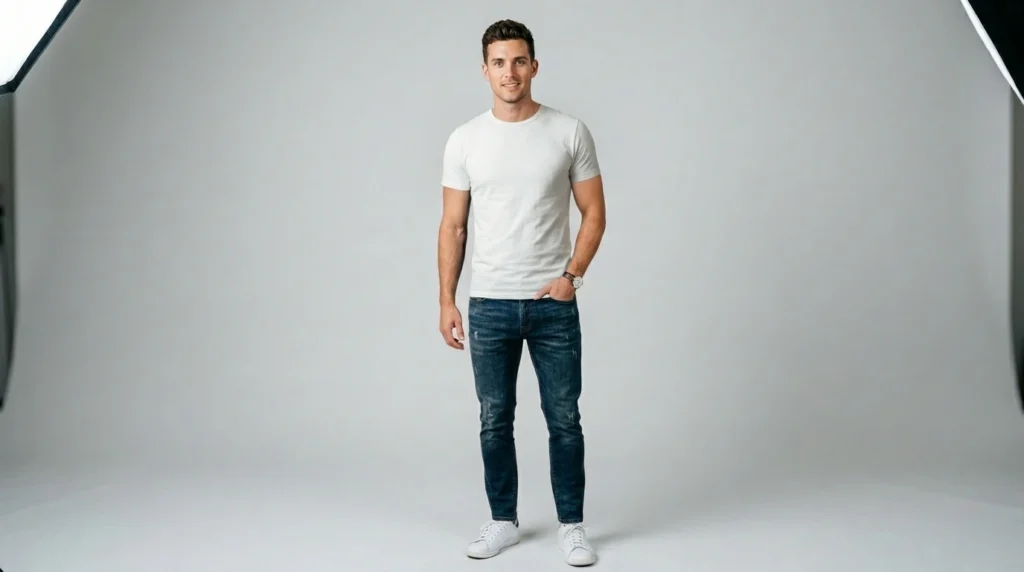
8. AI Virtual Try-On for Male Model with Garment and Footwear
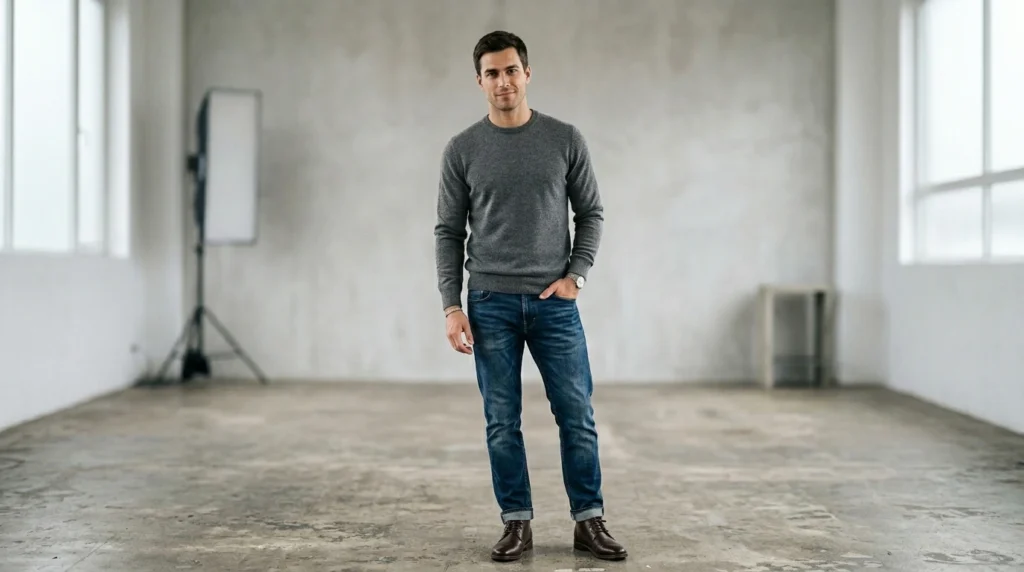
This is the full-outfit version for men’s wear — and it’s incredibly useful for brands selling coordinated looks or bundle deals. The prompt transfers both the clothing and the shoes onto the male model precisely, so your customers see exactly how the complete look comes together.
A high-resolution, photorealistic composite image based precisely on the provided reference images. The male model from Reference Image 2 is now wearing the exact garment and the exact footwear (shoes/sandals) shown in Reference Image 1. The specific patterns, unique textures, intricate details, and original colors of both the garment and the footwear must be replicated with precise fidelity from Reference Image 1 and mapped accurately onto the model's body and feet, replacing his previous attire and footwear. The garment and footwear drape and fit naturally, respecting the model's original pose, posture, body contours, and the studio lighting environment from Reference Image 2. All details of the model's face, hair, arms, and the studio background remain identical to Reference Image 2. Focus on precise content transfer of both items with realistic blending, folds, and positioning.
How to Use This Prompt
Step 1: Open Google Flow and start a new project.
Step 2: Upload an image showing both the male outfit and footwear together as Reference Image 1.
Step 3: Upload your male model photo as Reference Image 2.
Step 4: Submit the prompt and verify that the shoes and garment are both accurately rendered on the model. Once satisfied, save the image to your device (Download).
How to Customize This Prompt
Tip 1 — Adjust the footwear term: The prompt mentions “sandals” but you can swap it for “sneakers,” “dress shoes,” or “boots” to match whatever footwear your product is paired with.
Tip 2 — Create lookbook content: Use a series of different model reference images with the same outfit to create a mini lookbook from one product image. Change the pose or background in Reference Image 2 each time.
Tip 3 — Show outfit variations: If you sell the same garment in multiple colorways, swap Reference Image 1 for each color version to generate a full set of model images quickly.
How to Choose the Right Style
Not every prompt will be the right fit for every situation — so here’s a quick way to think about it. If you are selling a garment on its own, go with the ghost mannequin or single-item virtual try-on prompts — they keep the focus tight and uncluttered. If you are selling a styled look or a bundle, the full outfit prompts with footwear will serve you much better because they show the complete picture. For cleaner e-commerce pages, marketplace listings, or wholesale catalogs, the ghost mannequin prompts are the stronger choice. For active product listings where you want a model-worn feel, pick the virtual try-on options. When in doubt, run both versions with the same reference images and compare. You will often find that different platforms — Instagram versus your website versus a B2B catalog — each respond better to a different visual style.
Conclusion
Studio shoots had their run. Now the brands moving fastest are the ones using AI to produce scroll-stopping product imagery at a fraction of the traditional cost. These 8 AI fashion photography prompts give you everything you need — from clean, professional ghost mannequin images to dressed male and female model shots — all from a single reference photo and Google Flow.
The hard part is over. The prompts are here, the steps are laid out, and the results are ready to drop straight into your store. Now it’s your turn to test them. Try one of these prompts today and share your output in the comments below. Which style worked best for your products? We want to see what you create.